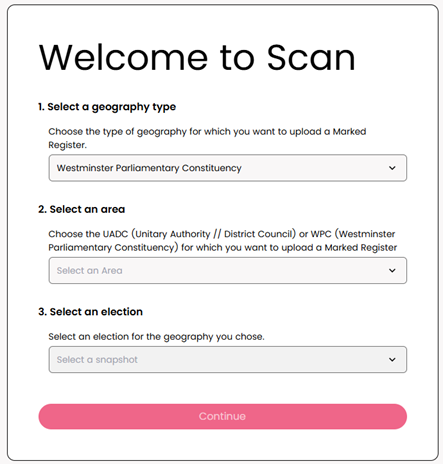
1. Go to https://scan.labour.org.uk/
2. Log in using your Labour Login
3. Select the geography and election date for your Marked Register
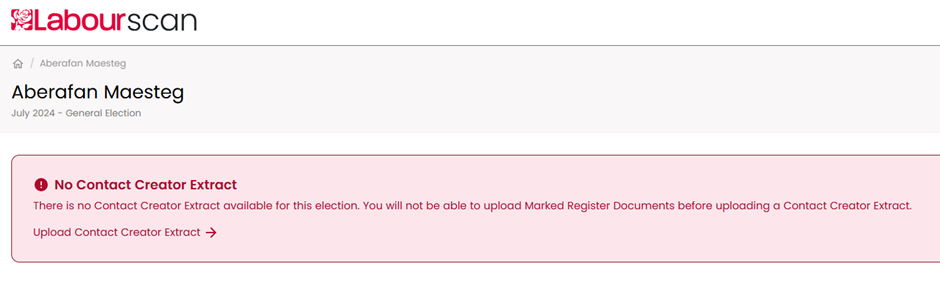
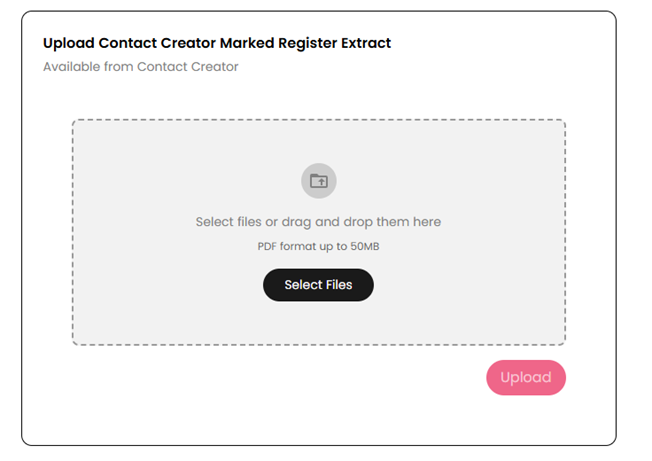
4. Click ‘Upload Contact Creator Extract’ and select the MREXTRACT (Contact Creator csv output file) for the area you are working on.
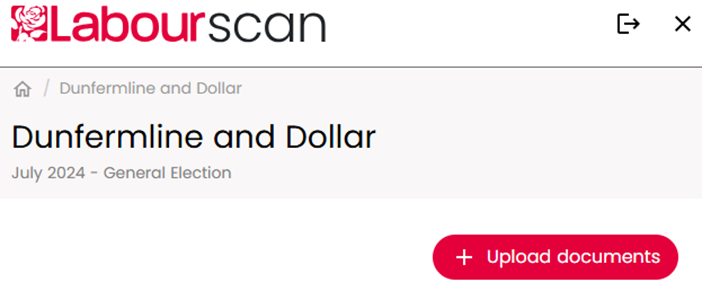
5. Click ‘Upload documents’ in the top right to upload PDFs.
6. You can multiselect as many PDFs as you need here
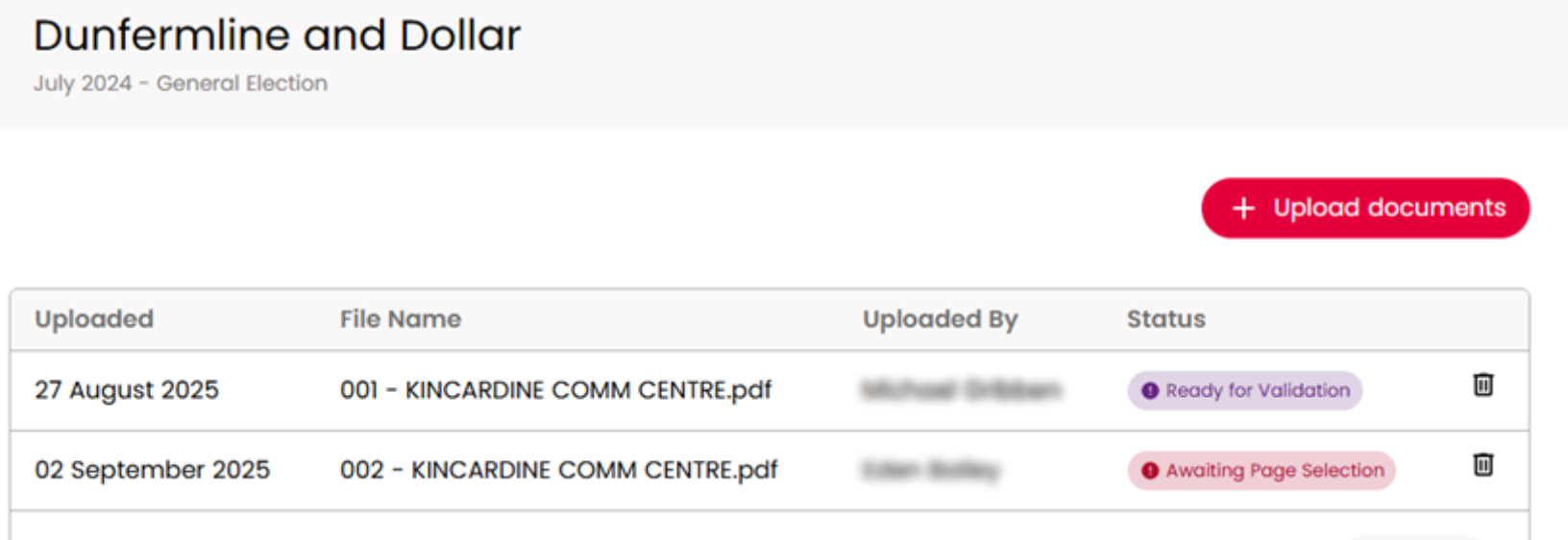
7. You should now have one row per PDF on this table
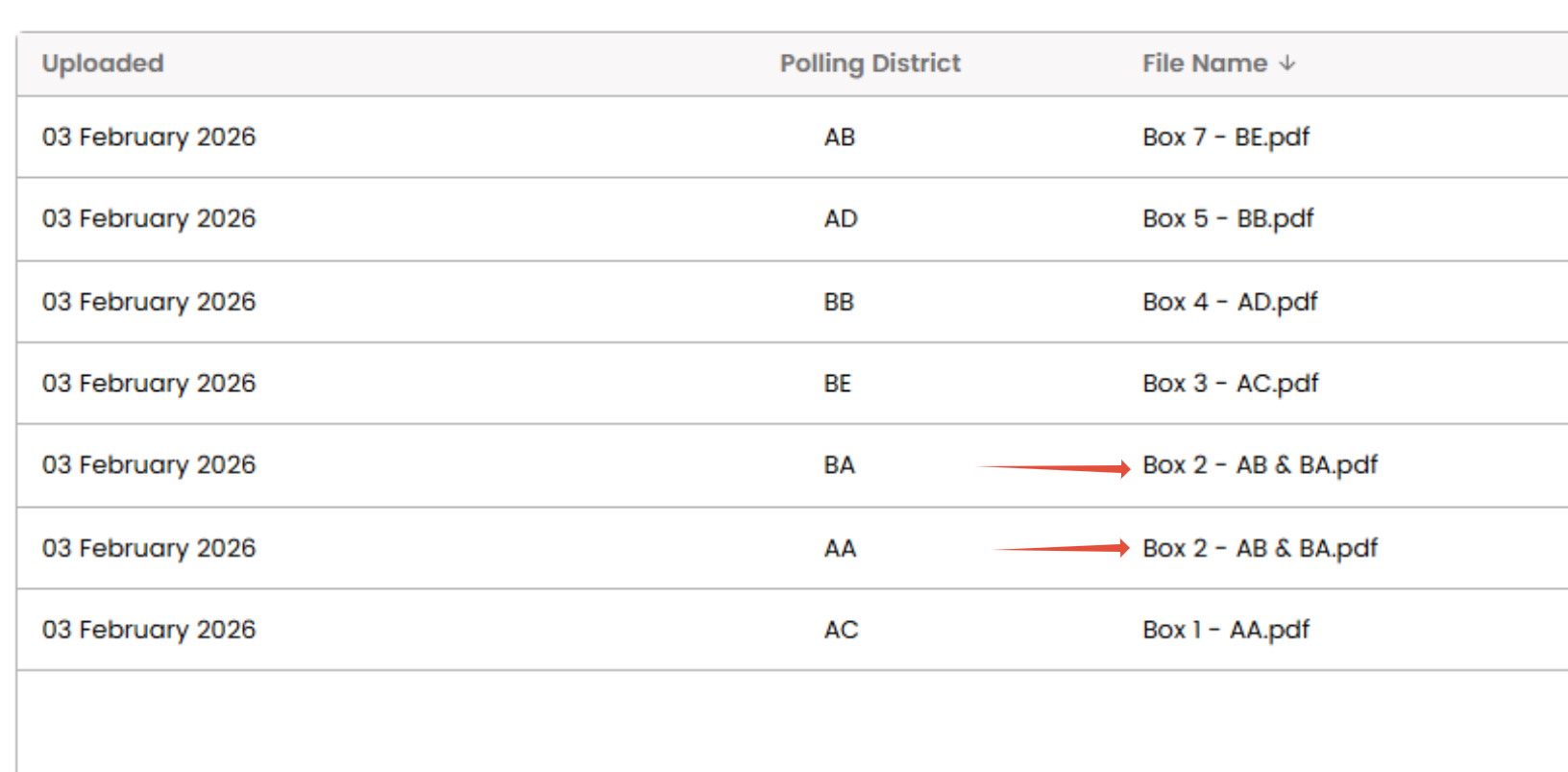
8. If you have one PDF which contains data for two Polling Districts, upload this PDF twice - one PDF per Polling District
9. Click the PDF you want to work with.
10. Specify which Polling District the PDF contains data for. If you have multiple Polling Districts in a PDF, please upload the PDF again and specify one Polling District each.
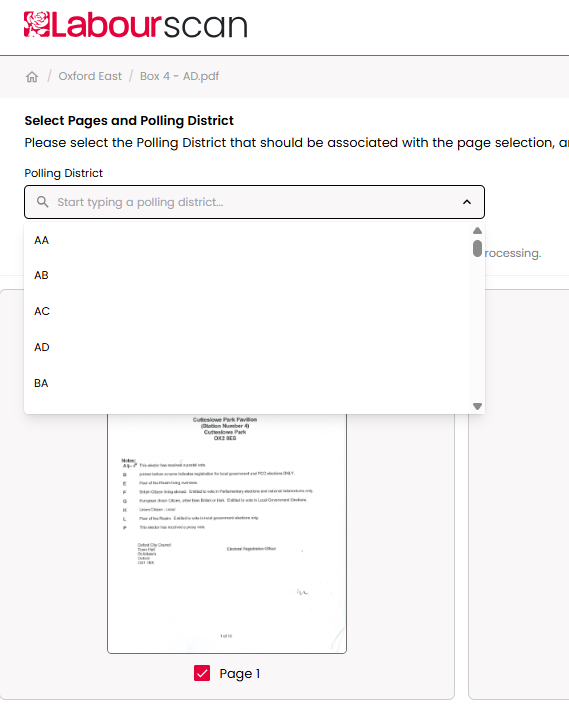
11. Use the page selector to deselect any pages which do not contain individual voters’ names and Polling Numbers. Click on pages to enlarge them.
NOTE: it’s really important to deselect any pages that do not have individual level data on them, because they are not of use to us, but processing them will still cost the Party money, and cause the files to take longer to process
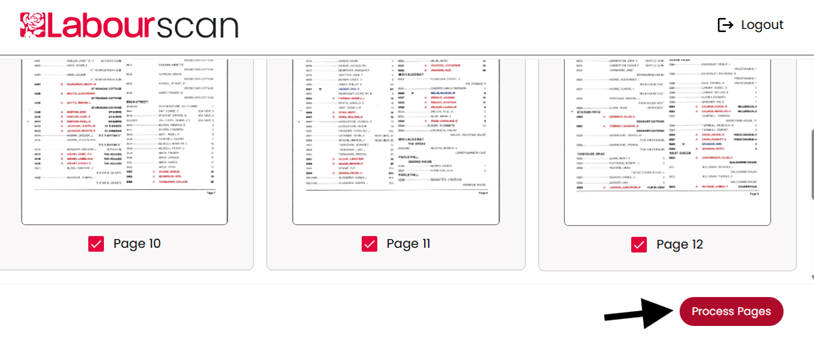
12. Once sent for processing you will see the below screen. You do not need to stay on this page for the pages to process, you can navigate away/do other tasks
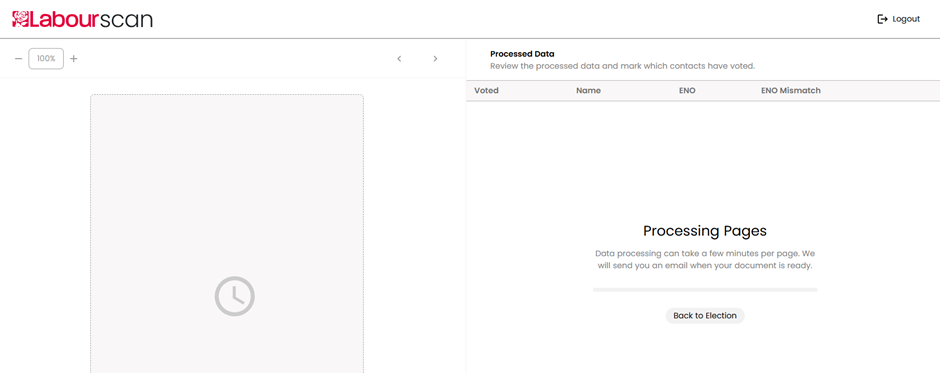
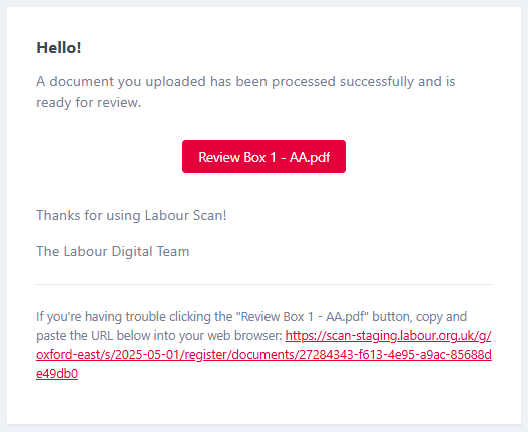
13. You will receive an email when the pages are finished processing. The processing time will depend on how many pages are sent.
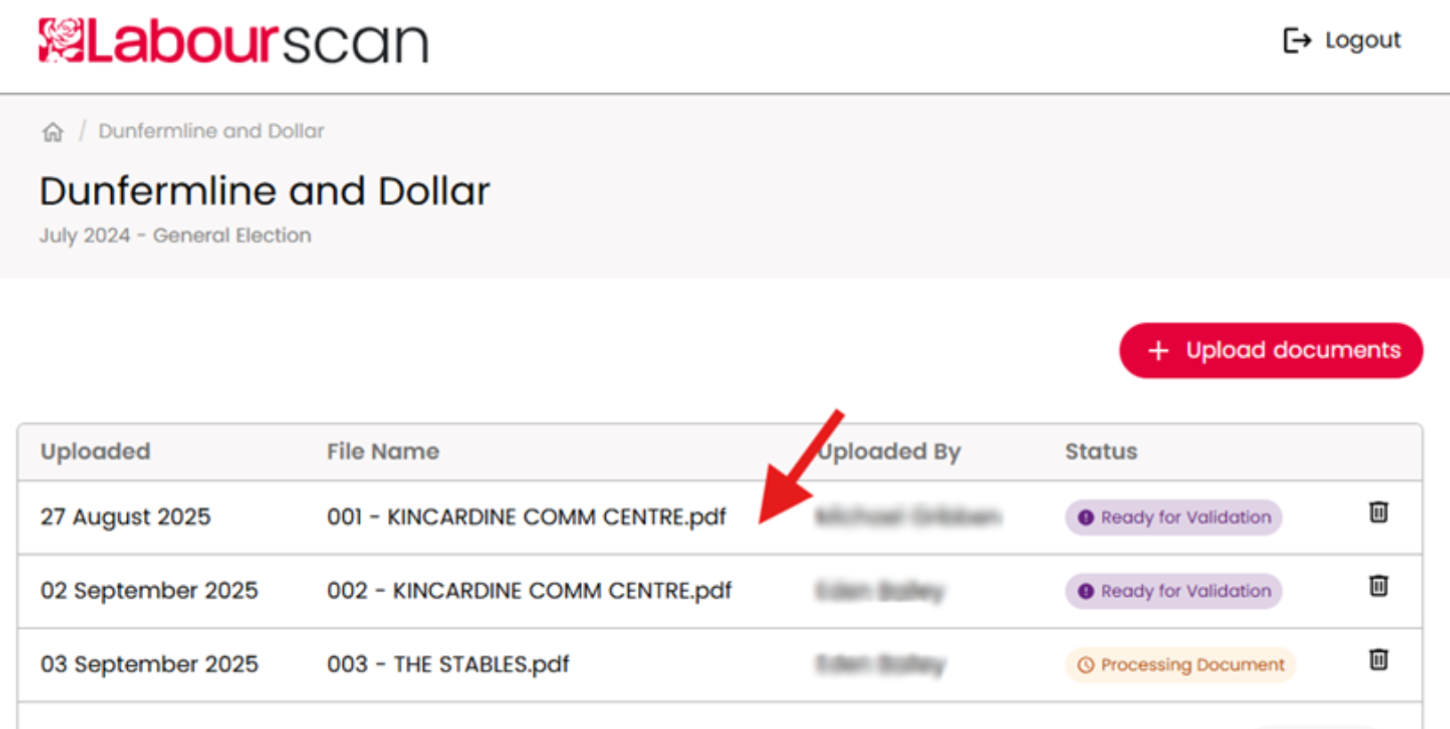
14. Go back to Scan, and click the row of the table with PDFs that are finished processing
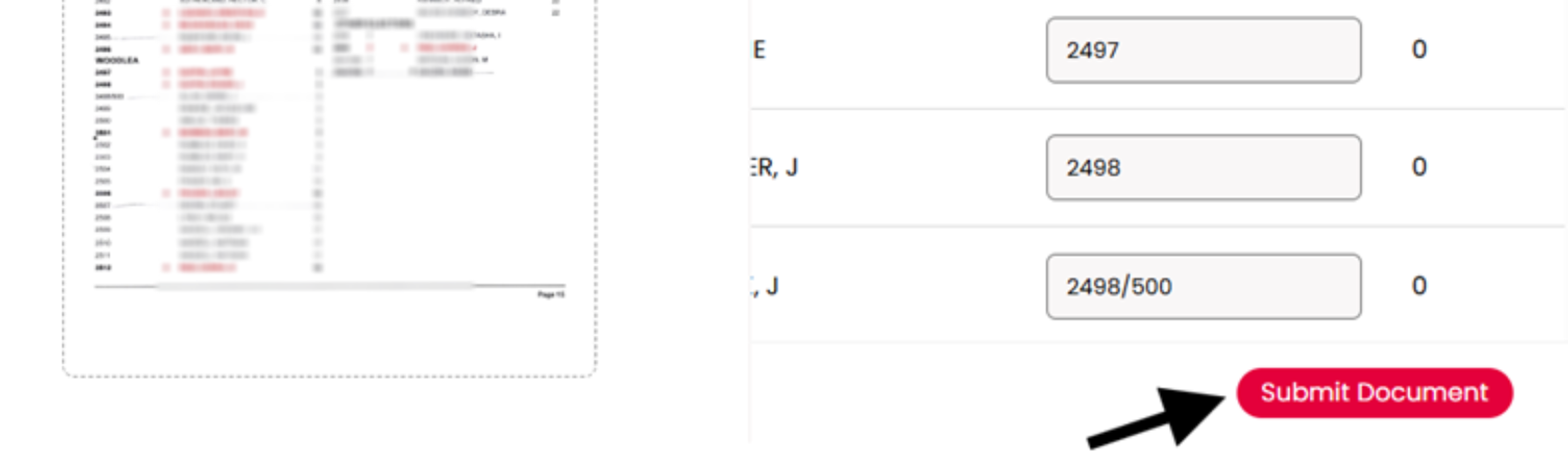
15. You will then see the ‘Validation’ screen, with the PDF on the left, and the AI interpretation of the records on the right.
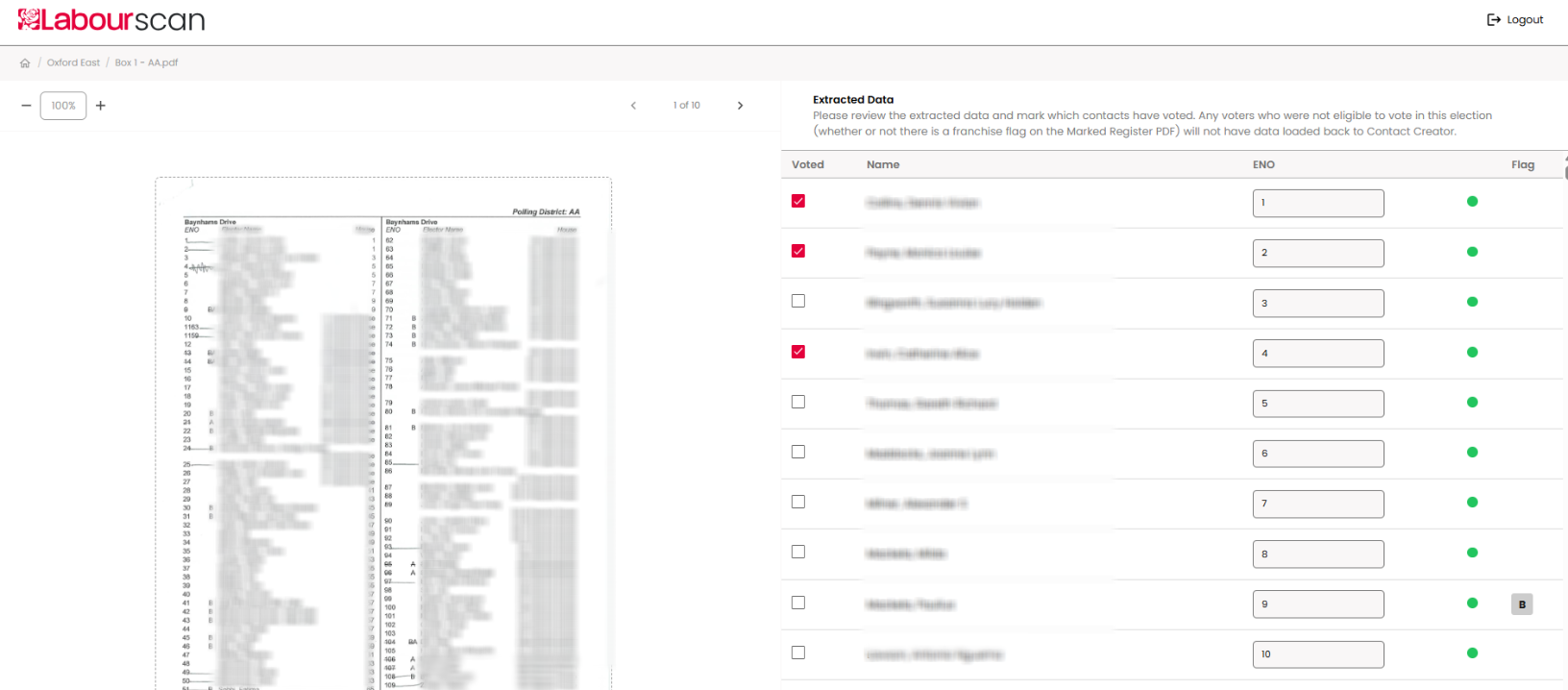
16. On the PDF a voter with a line next to or through their name means they have voted, and no line means they have not voted. If they have an ‘A’ next to their name, that means they are an Absent Voter and their marked register data is in a different file so will be excluded from this process.
17. Voted is shown as a tick in the ‘voted’ checkbox on the ‘Extracted Data’ view, no tick means ‘not voted’.
18. Carefully go through each voter and make sure the AI has interpreted the data correctly. If it is wrong, you can use the checkbox to correct the voted/not voted status, or the Polling Number/Elector Number (ENO).
19. When you are happy that you have validated the records and made any corrections either to polling numbers or voted/not voted checkbox, you can ‘Submit Document’