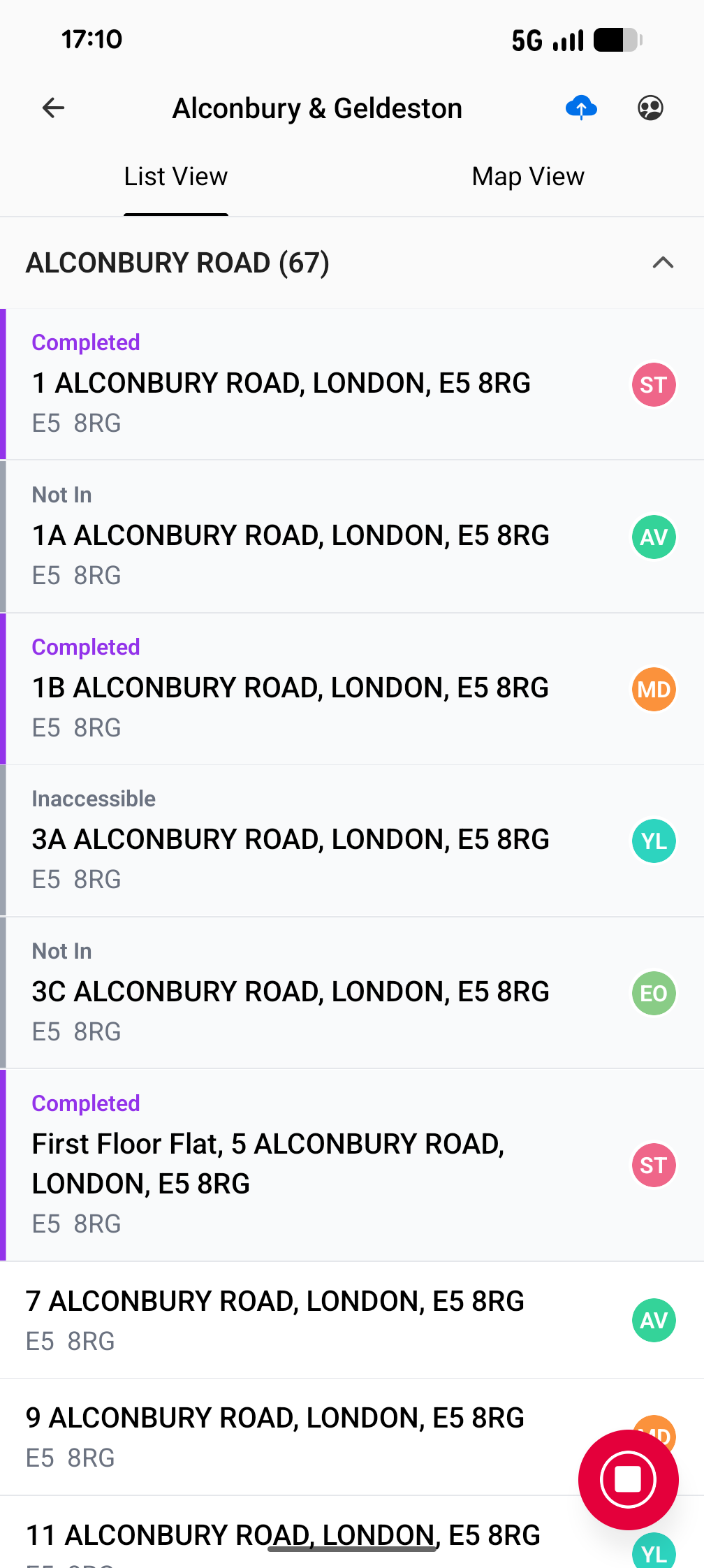
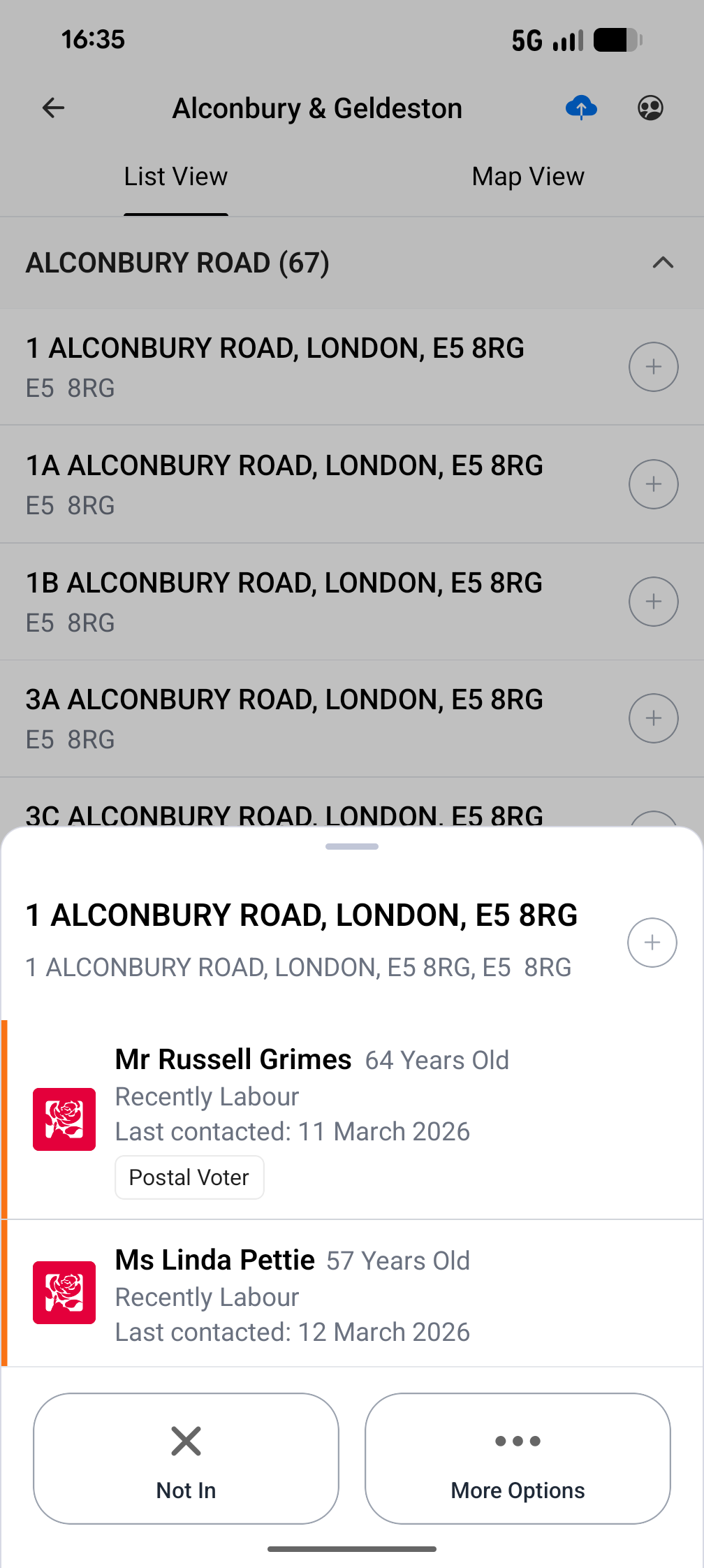
To log any information or complete the voter survey, click on the relevant property to view the members of the household. The menu will show basic information including full name, age (if known), last known voting intention and when they were last contacted.
Click on the name of a person to open the voter survey. Click on 'Not In' to mark the whole property as not in and click on 'More Options' to add other reasons why the survey couldn't be completed for the whole household.
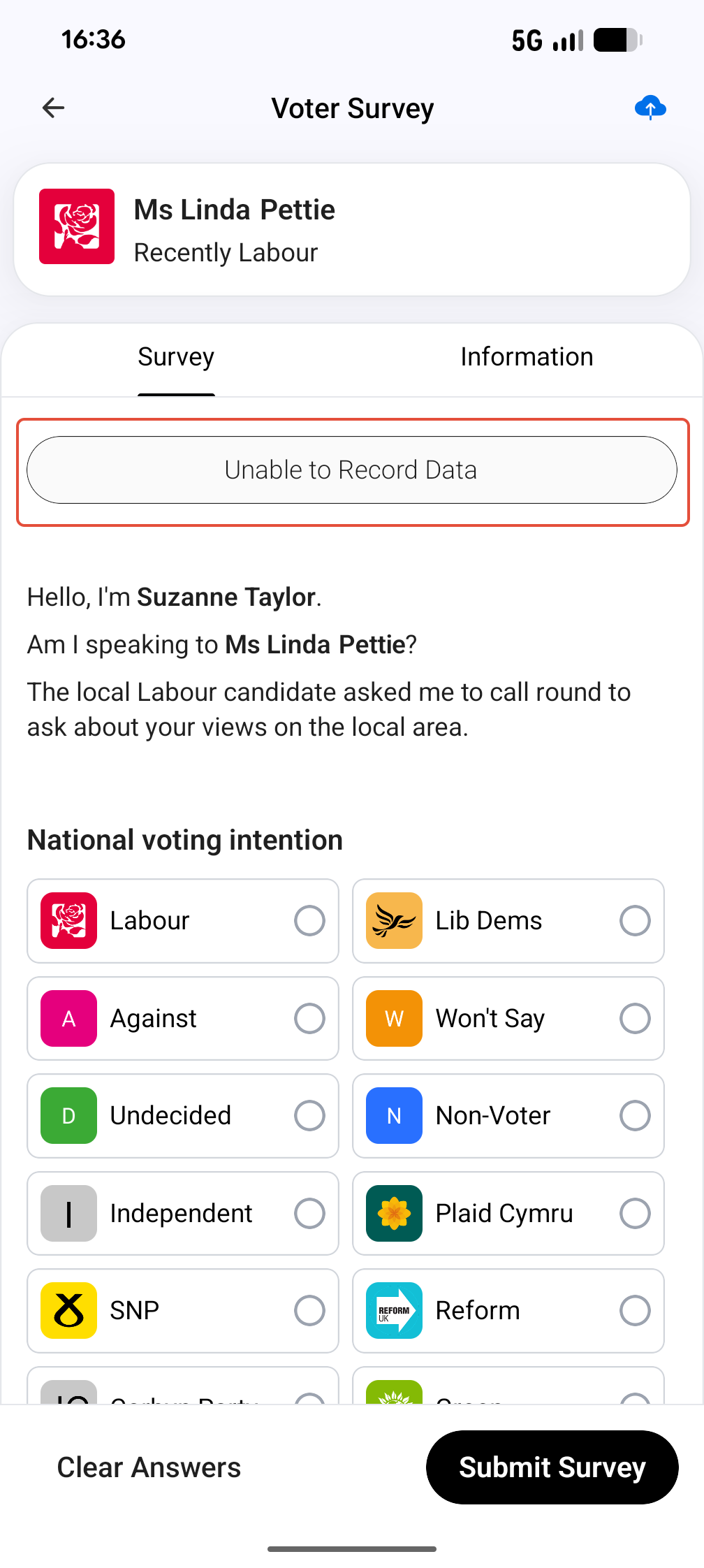
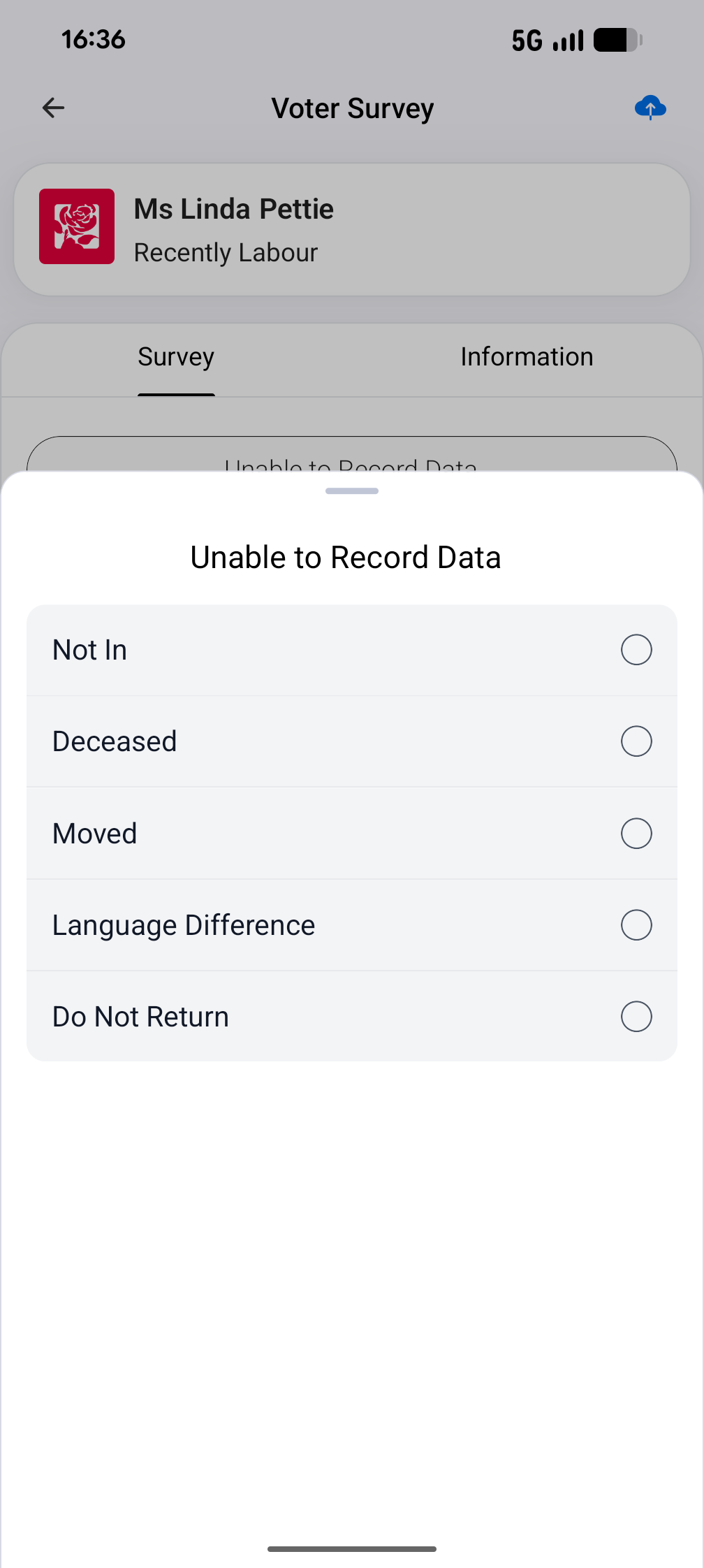
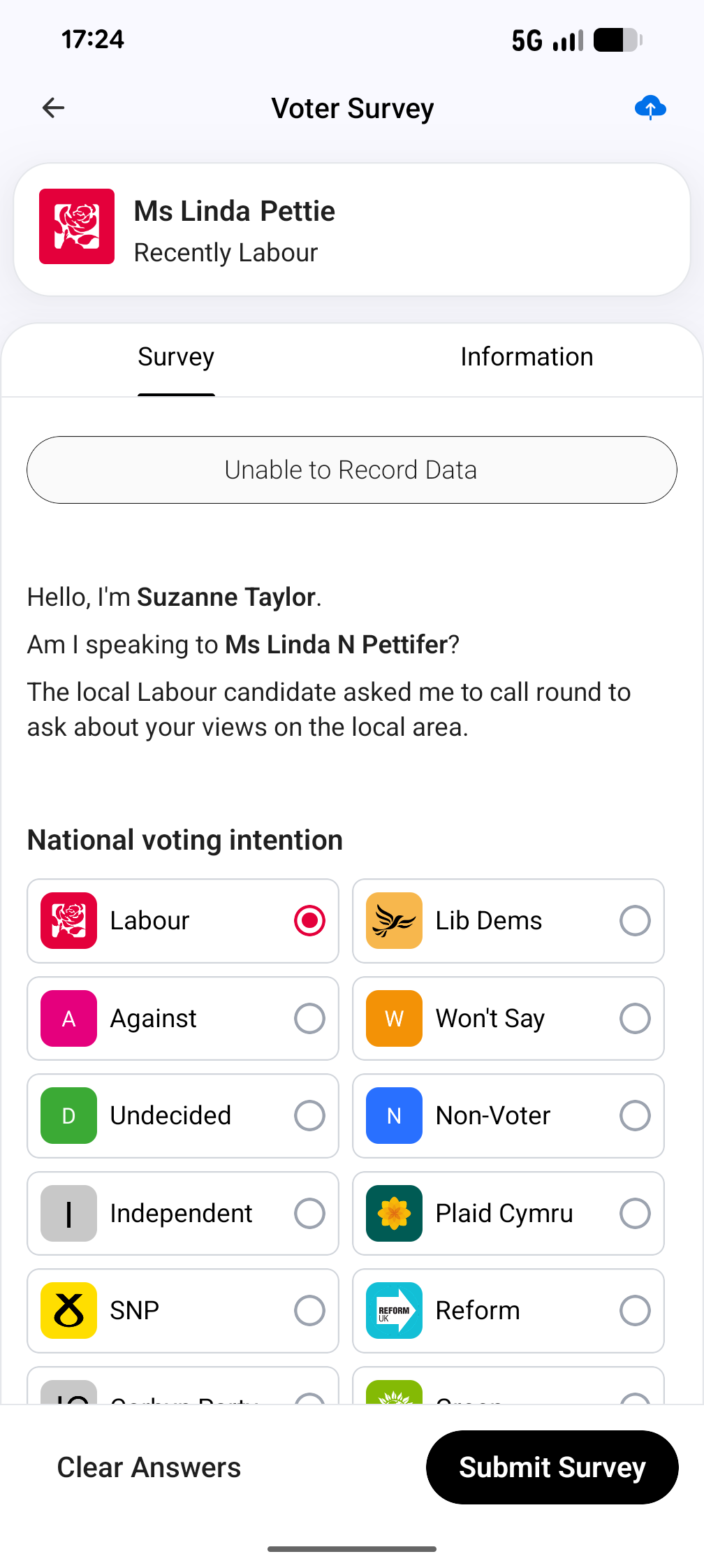
To mark reasons why the survey couldn't be completed for an individual person, click on their name to open the survey and click 'Unable to Record Data' at the top of the screen.
The options are not in, deceased, moved, language difference and do not contact.
To enter data in the voter survey, click on the answers to fill them and scroll down to see more questions.
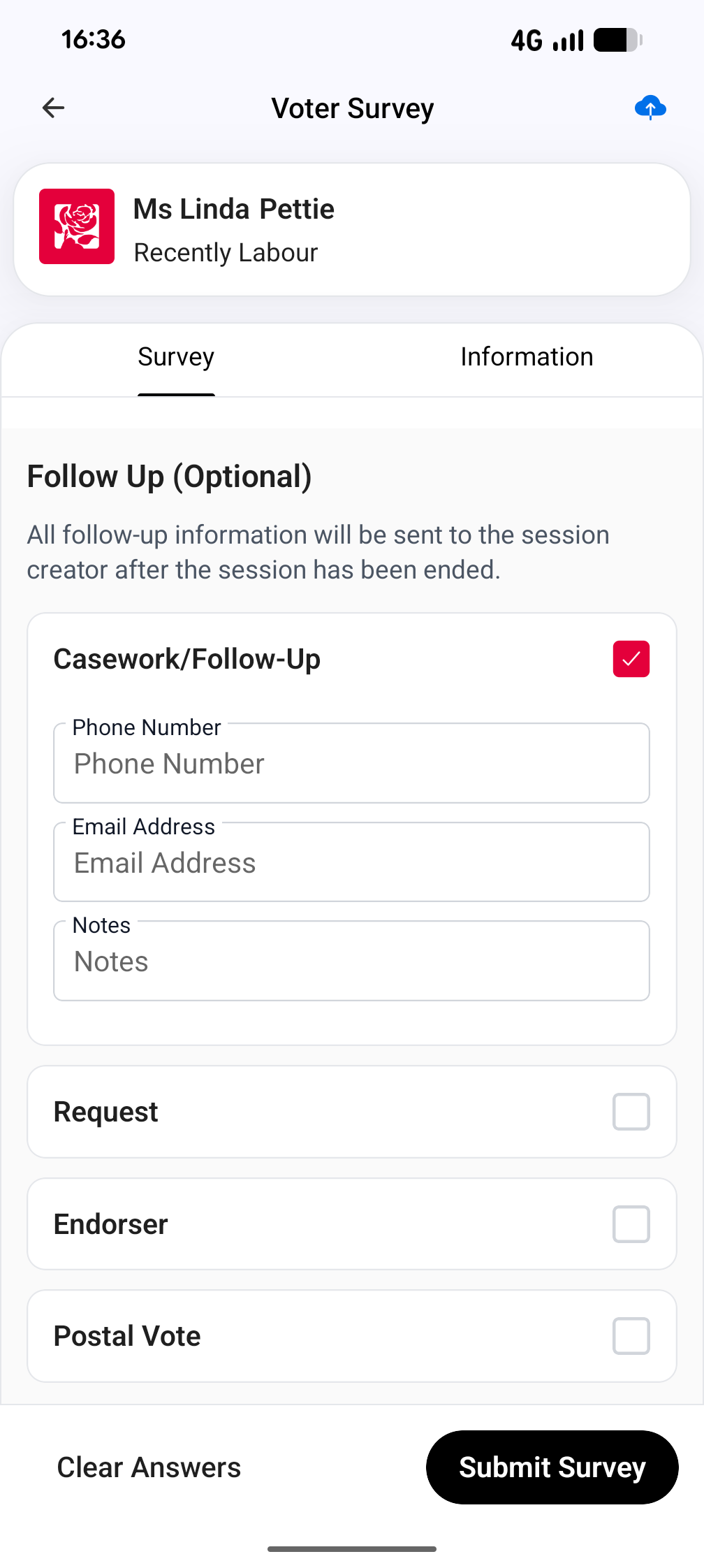
Follow up options including logging contact information for casework and candidate follow ups, requests for posters or garden stakes, marking a contact as a potential endorser and logging a request for a postal vote form are at the bottom of the survey. Click on the boxes to open the keyboard for typed answers.
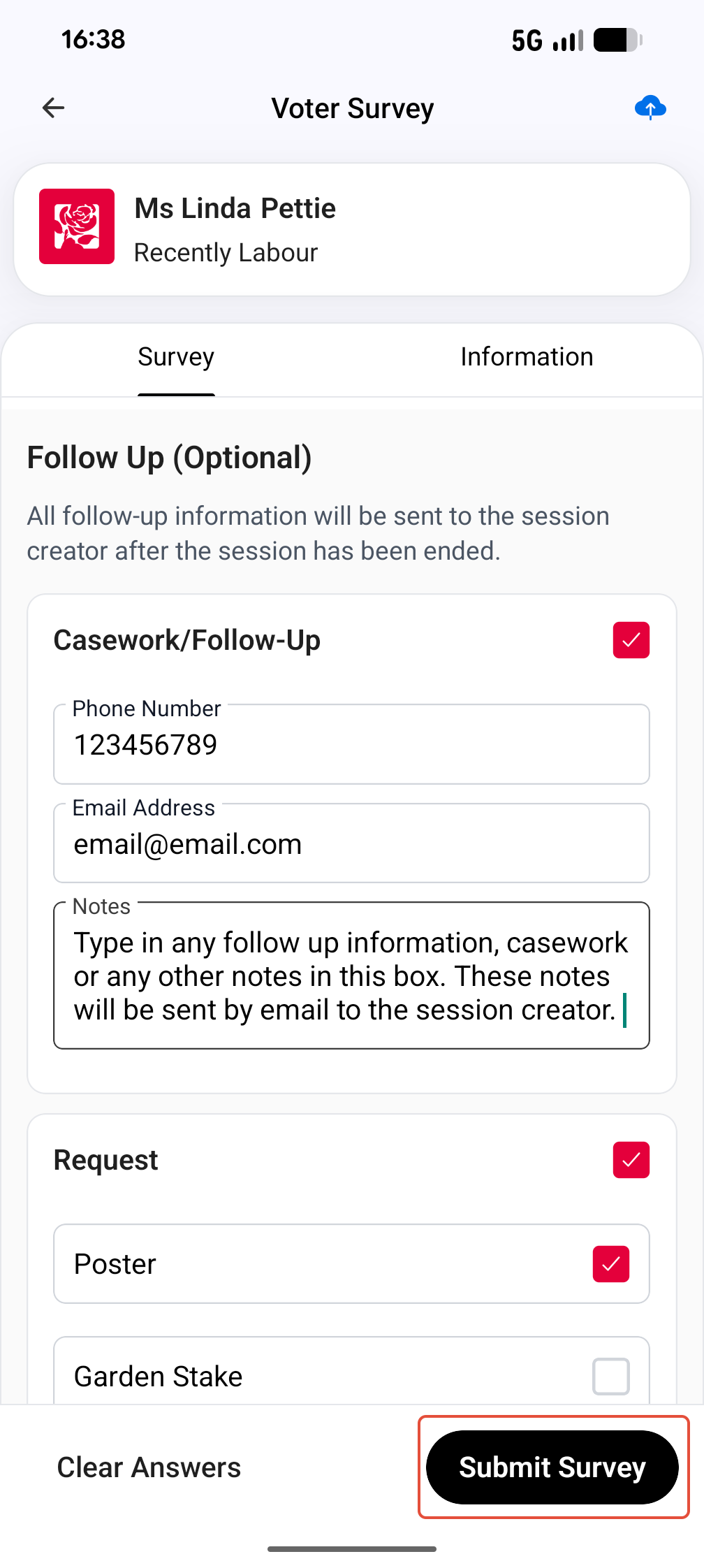
When you have finished filling out the survey, click Submit Survey at the bottom.
You will be returned to the road group automatically where you can see which properties have been completed.