Using a QR code or share link to add team members in GOTV mode is very similar to VID mode. When you add a volunteer to a road group, they will only be added to that one group. They won’t see any properties until assigned and won’t be able to enter data.
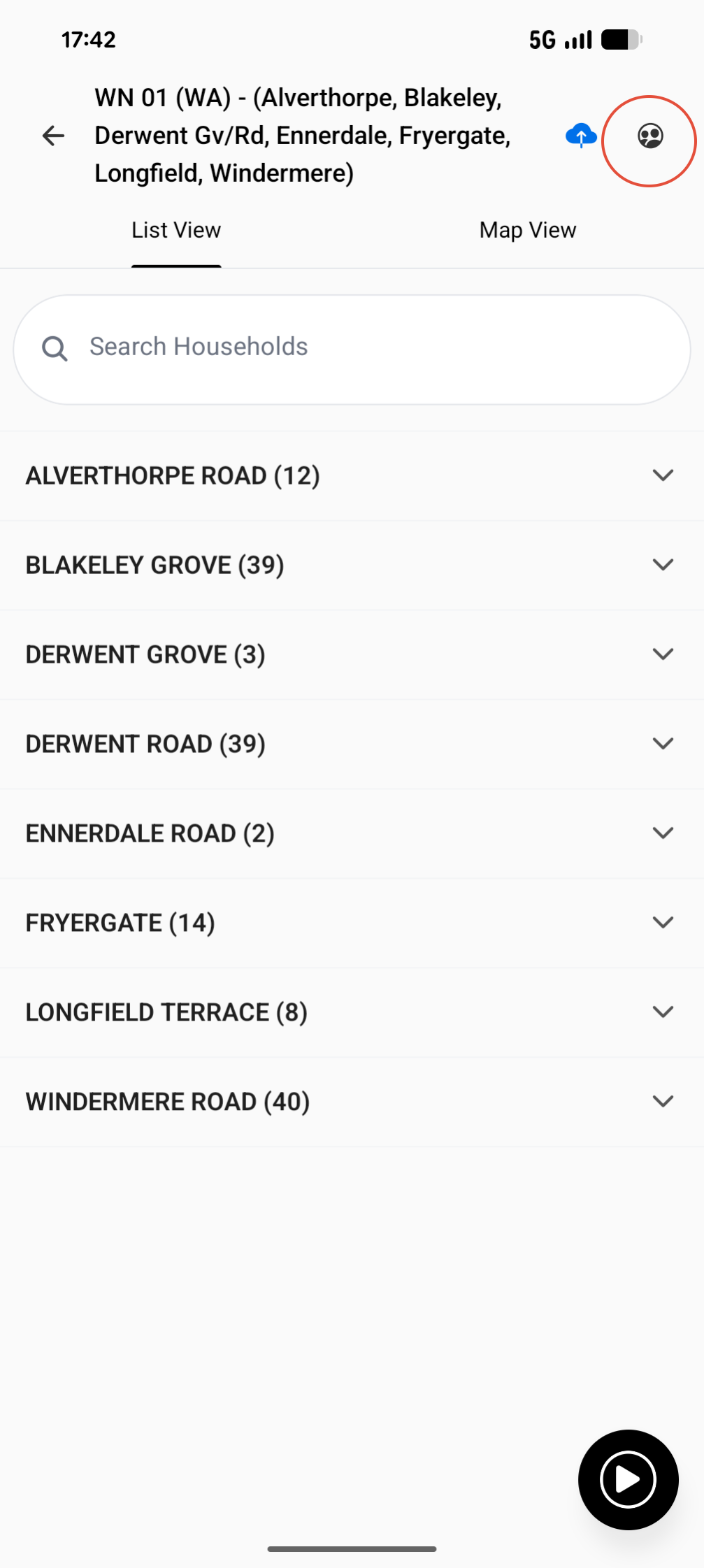
To add a board runner to a road group, open the desired road group and tap the person icon to access team management. From there, you can add the board runner to that specific road group in your GOTV session.
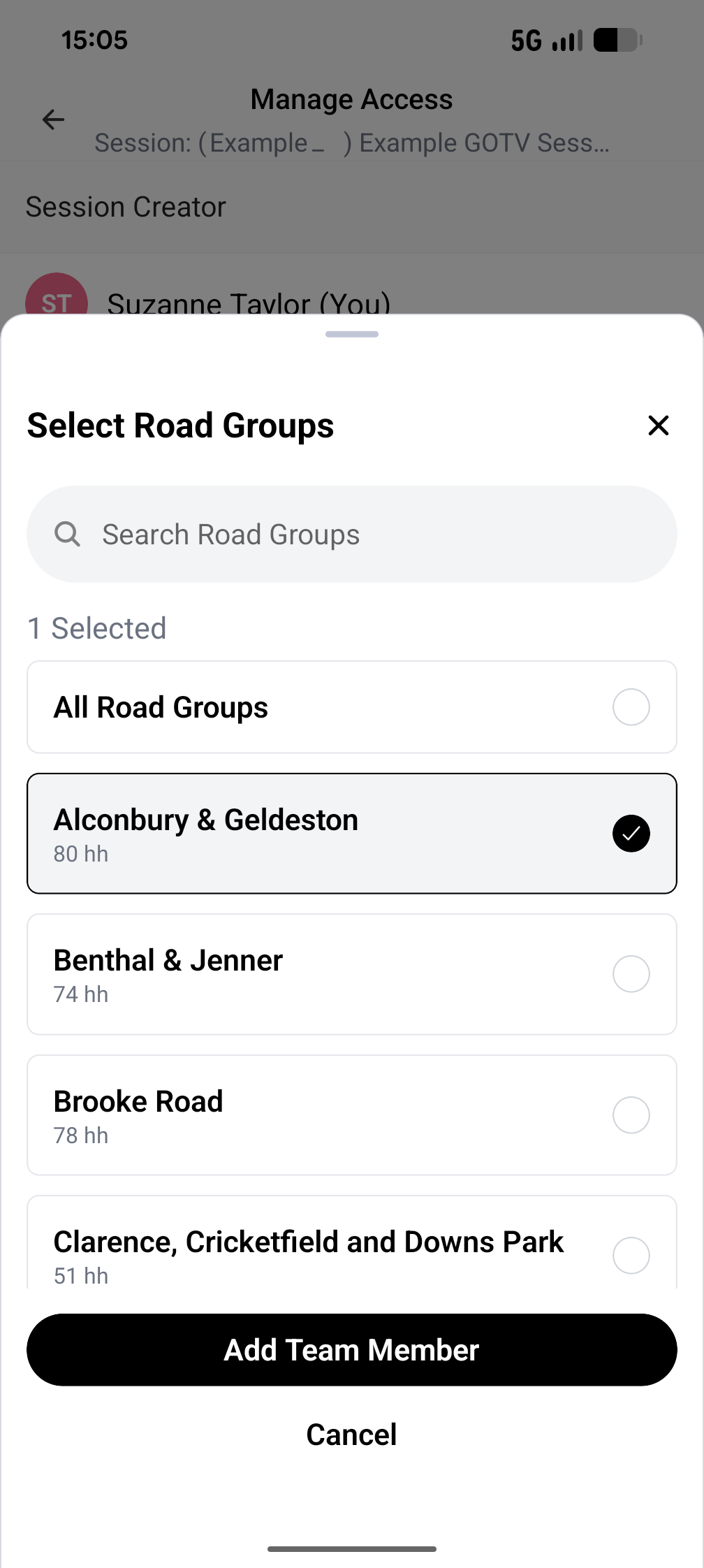
If you add a board runner via the session page, you will be prompted to choose which road groups to add them to. You can select one, multiple, or all road groups. Tap Add Team Member, then choose how you want to share access:
- QR code: scan the board runner’s QR code to add them to the selected road group(s)
- Share link: generate a link to send via email or message
Once the board runner opens the link and joins, they will be added to the selected road group(s).
Board runners can start and end road groups, add team members, and enter data within a GOTV session. Only the session creator can start or end the overall session.
You can find step-by-step guidance for using QR codes and Share Links to add team members here: